Remote working
The original super-power of the command line is that it allows us to connect to other machines. While today we have remote-desktops and screen-shares to see and work with other computer’s GUIs, the command line has been doing this since the 1960s!
In research, we often work on remote machines (“computing clusters”, “HPC”, “supercomputers”, or even just “servers”), which we need to log in to. Once we are logged in, the terminal will behave as if we are sitting at that machine, which might be on the other side of the world.
Using ssh
SSH is the primary method for connecting to HPC systems. ssh command opens a command line session on a remote computer. The name is short for “secure shell”, because it opens a shell to communicate with a remote machine on the same network, using an encrypted, secure connection.
ssh us01234@hpc-server.bristol.ac.ukAfter executing something like the above command, you will then be asked to enter your password - it will not display anything or display stars (*) as you type. If the password is correct, you will then see a new prompt, including the name of the machine you are now logged in to, for example:
[us01234@hpc-server ~]$ssh can be used for more than just remote login, it can also execute commands remotely without starting an interactive session.
Using PuTTY
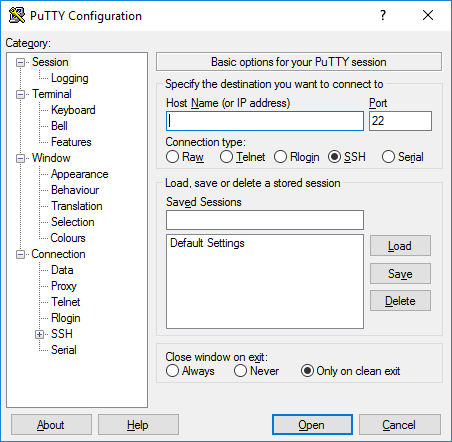
PuTTY is a popular, open source SSH client for Windows. It can be downloaded here.
Copying files to and from remote machines using scp
SCP uses SSH to transfer files securely between systems. scp (“secure copy”) is just like cp, except it can copy files and folders to and from another computer. scp is built on top of SSH and provides a secure way to transfer files, ensuring data confidentiality during transit.
Just like with cp, you can copy the contents of folders with the flag -r.
# Copy local file to remote host
scp local_file.txt us01234@hpc-server.bristol.ac.uk:/remote/path/

# Copy remote file to local system
scp us01234@hpc-server.bristol.ac.uk:/remote/file.txt /local/path/

# Copy entire directory recursively
scp -r /local/directory us01234@hpc-server.bristol.ac.uk:/remote/path/
If you don’t have scp in your Windows machine, you can download it from PuTTY’s website.
FileZilla for Graphical File Transfer
FileZilla provides a user-friendly graphical interface for file transfers. It is available at the Company Portal.
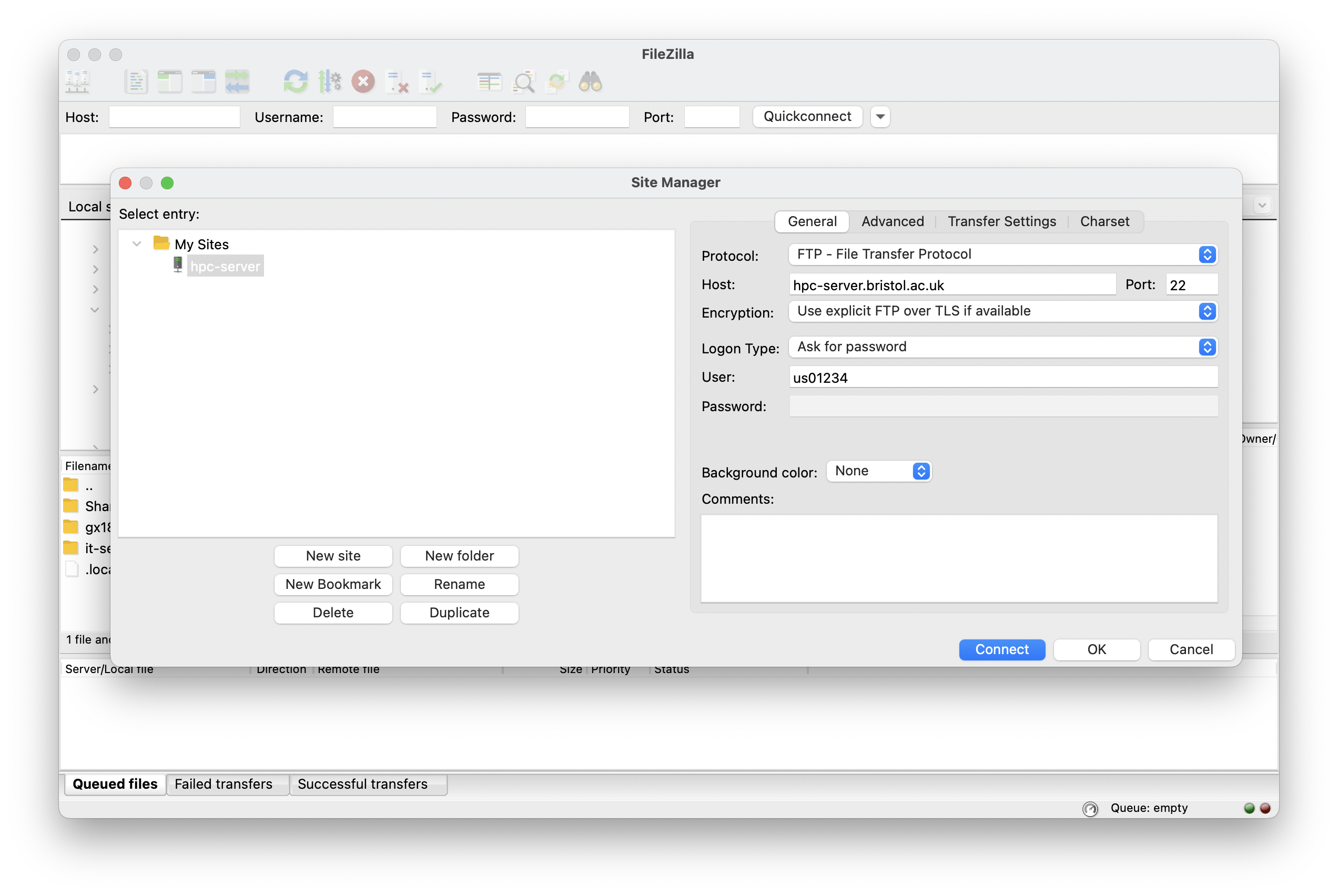
Setting up FileZilla Connection
- Open FileZilla and go to File → Site Manager
- Create New Site with these settings:
- Protocol: SFTP - SSH File Transfer Protocol
- Host: Your HPC system hostname, e.g. hpc-server.bristol.ac.uk
- Port: 22 (or your system’s SSH port)
- Logon Type:
- “Normal” for password authentication
- “Key file” for SSH key authentication
- User: Your username, e.g. us01234
Using FileZilla
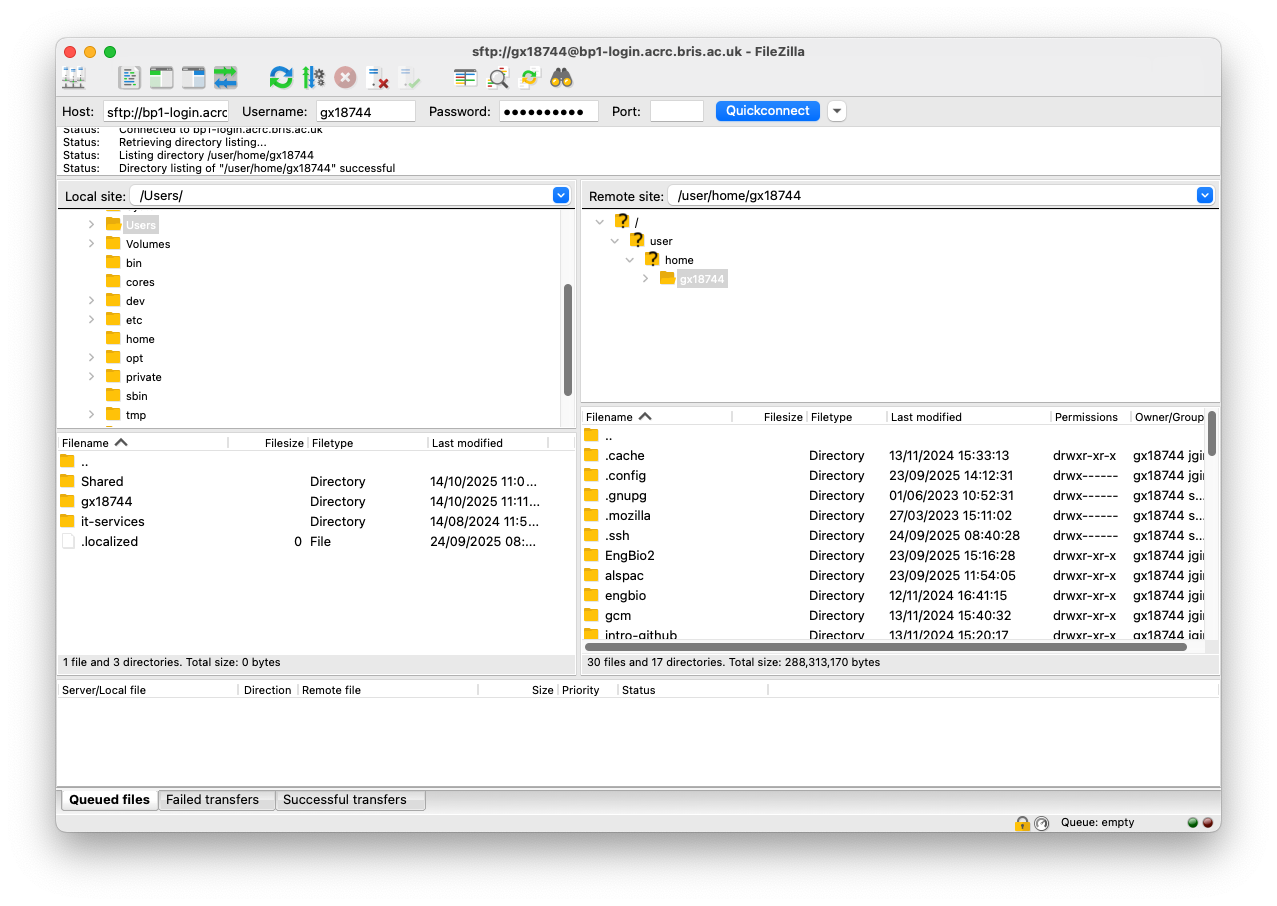
- Left panel: Your local computer files
- Right panel: Remote HPC system files
- Transfer files: Drag and drop between panels
- Queue: Monitor transfer progress in bottom panel
SSH Key Authentication
Setting up SSH keys eliminates the need to type passwords repeatedly.
To generate a key you can type on your Terminal (Mac) or PowerShell (Windows):
# Generate SSH key pair on your local machine
ssh-keygen -t rsa -b 4096
Then you need to copy the key to the server using:
# Copy public key to HPC system
ssh-copy-id us01234@hpc-server.bristol.ac.uk
Or if you don’t have ssh-copy-id in your system, you can do it manually:
- Copy your key to the clipboard.
type $env:USERPROFILE\.ssh\id_rsa.pub
``
cat ~/.ssh/id_rsa.pub- Connect to the server
ssh us01234@hpc-server.bristol.ac.uk- On the server, run the following instructions replacing
YOUR_PUBLIC_KEYwith the key you have copied in your clipboard.
echo "YOUR_PUBLIC_KEY" >> ~/.ssh/authorized_keys
chmod 600 ~/.ssh/authorized_keys
``
SSH Configuration File
Create ~/.ssh/config on your local machine to simplify connections:
# To connect simply with 'ssh hpc-server'
Host hpc-server
    HostName hpc-server.bristol.ac.uk
    User us01234
    Port 22
    IdentityFile ~/.ssh/id_rsa